Setting Up an Existing eCTAS User at a New Facility
 |
Important: If a user has never had eCTAS access at any facility, follow the steps above for Setting Up New eCTAS User Accounts |
If a user has previously acknowledged the eCTAS End User License Agreement (i.e. they were previously set up with access to eCTAS at a facility), and now require access to eCTAS at a new facility, follow steps below:
- The new facility’s ONE®ID LRA enrolls the user (via the user's ONE® ID account) to the eCTAS service for their facility
- The user needs to Login to eCTAS once per environment
- Production environment: Clinical Application URL https://ectas.ccohealth.ca or Administration Console URL https://ectas-admin.ccohealth.ca
- Conformance environment: Clinical Application URL https://confectas-spa.ccohealth.ca or Administration Console URL https://confectas-admin.ccohealth.ca

Note: After logging in, the user will not yet have access to the new facility. If they still have access to one or more other facilities, they will the see the eCTAS Clinical Application or Administration Console for those facilities. Nurses should NOT attempt to triage patients at the new facility yet. If the user no longer has access at their previous facility, they will be prompted with an Action Required notice (shown below) advising them to contact their eCTAS Facility Role Administrator for next steps 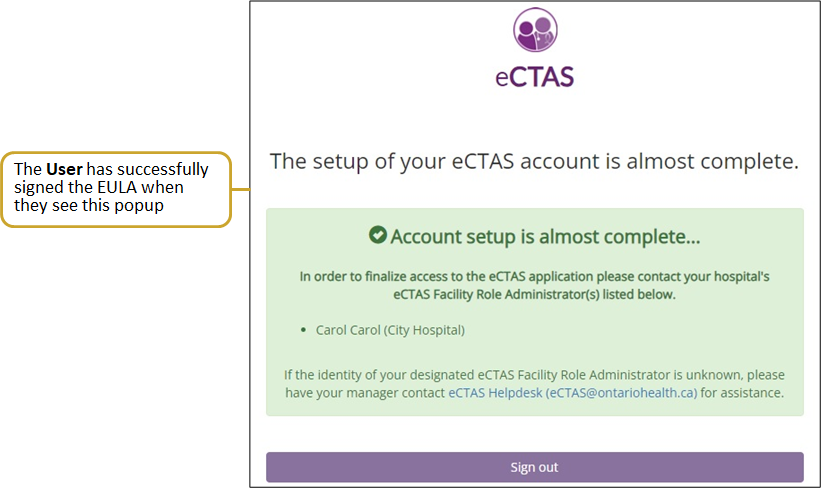
- The eCTAS FRA logs in to Site Role Management and assigns the user the appropriate site(s) and role(s) per environment.
- Production Environment Administration Console URL https://ectas-admin.ccohealth.ca
- Conformance Environment Administration Console URL https://confectas-admin.ccohealth.ca
Upon completion of all steps above, the user will be able to access appropriate eCTAS environments and features. (e.g. Triage nurse can access the eCTAS Clinical Application on conformance for training and on production for real patient triage)
|
Important: When users no longer require access to eCTAS features, the FRA must immediately disable access by removing site/role for the user in a timely manner to mitigate privacy and security risks. See Remove Sites and Roles tutorial and/or steps |